PhotoReport 2026.5: Create Report, Filtered Exports, and Mobile-Friendly HTML Reports
PhotoReport 2026.5 Is Here
One month after PhotoReport 2026.4 brought real-time cloud collaboration, the Teams plan, and audio comments to the app, version 2026.5 lands today on the App Store. Where 2026.4 was about capturing and syncing a site visit across your team, 2026.5 is about the next step: turning that visit into a deliverable your client can open, read, and act on, on whatever device they happen to be holding.
We rebuilt the export flow and renamed it Create Report. We added filters so you can send the right slice of a project to the right stakeholder. We made HTML reports look great on a phone, in eight languages. Audio comments now play inside shared reports. PDFs got real polish. And the iPhone experience is tighter throughout.
Here is everything new.
Create Report Replaces Export
Naming matters. “Export” sounded like a developer feature, a dropdown you stare at trying to figure out which file format your client actually needs. The truth is you are not exporting; you are creating a report. So we renamed it.
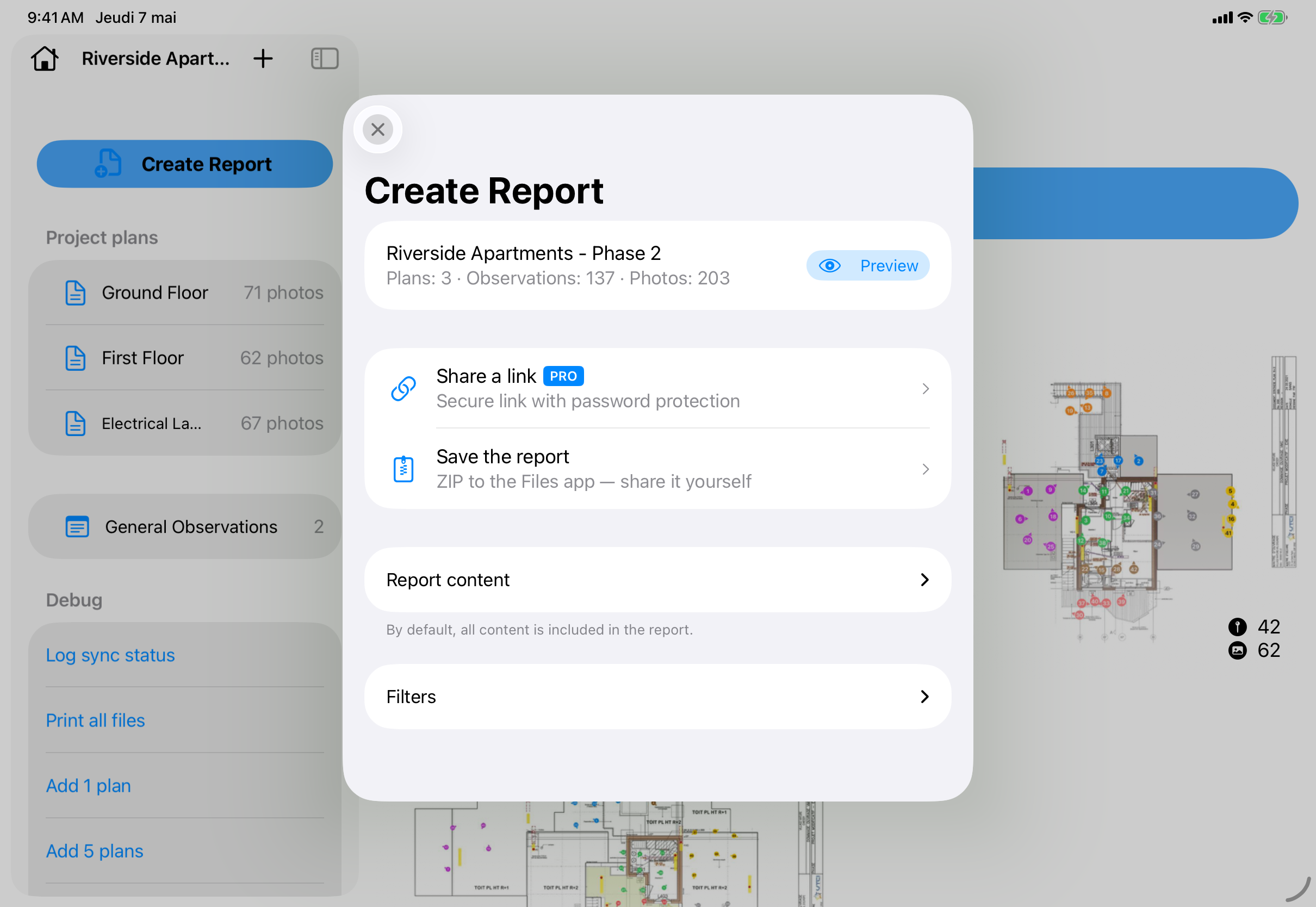
Create Report is the new flow you reach from any project to package up a site visit into a finished deliverable. Three things changed.
Outcome-driven choices
Instead of starting from the file format (PDF? HTML? ZIP?), you start from the outcome: save the report, share online, or generate a ZIP archive with every photo at full resolution. The format follows the outcome, not the other way round, and the labels in the flow now describe what happens, not what gets generated.
A much snappier preview
The old preview loaded the entire HTML report in a hidden web view before showing anything. On a project with two hundred annotations, that meant a five-to-ten-second wait every time. In 2026.5, the preview uses ImageIO thumbnails and lazy HTML rendering: the first thumbnail appears almost instantly, and the rest stream in as you scroll. If you generate dozens of reports per week, this is the change you will feel the most.
Unified progress from start to finish
Sharing online used to surface several stacked progress indicators (per-photo upload, ZIP packaging, server processing). They were technically accurate and emotionally exhausting. We replaced them with a single, named progress phase: “Preparing photos”, “Uploading”, “Generating link”. One bar, one label, end to end.
A small but meaningful change for projects with zero plans: Create Report no longer fails on these. You can now generate a report on a project that is purely general observations, without needing a plan to anchor it.
Filter What Goes Into Your Reports
A construction site report is rarely “the entire project”. You send the electrical contractor what concerns the electrical contractor. You send the client a recap of last Thursday’s visit, not the cumulative log of three months. Until 2026.5, doing this meant either filtering in the app and crossing your fingers, or generating the full report and asking your client to ignore the parts that did not concern them.
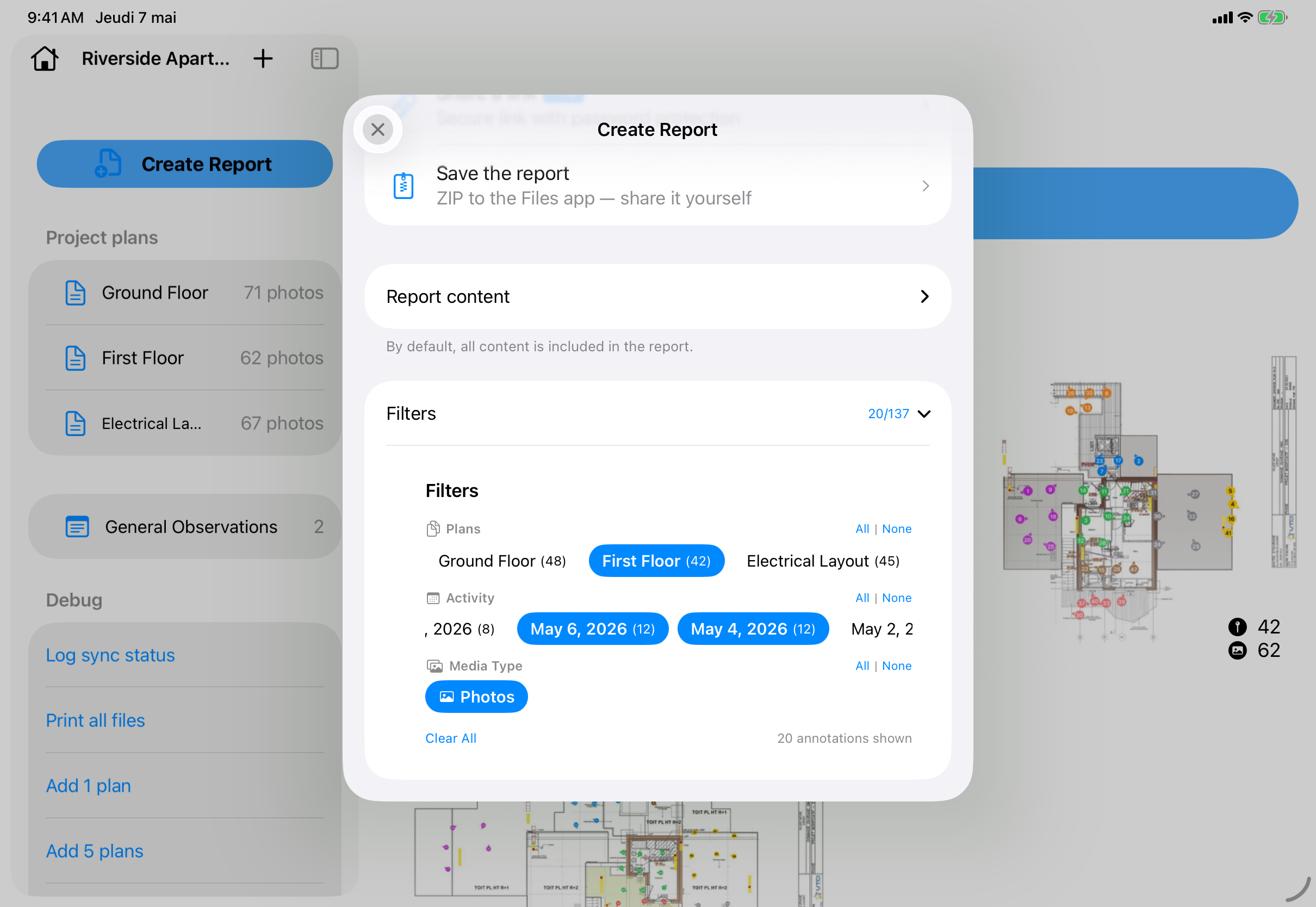
PhotoReport 2026.5 introduces report content filters directly inside the Create Report flow. You can slice the report by:
- Plan: include only the floor plans relevant to a contractor or trade.
- Day: include only the visits from a specific date or date range. Useful for daily reports and weekly recaps.
- Contributor: include only the annotations created by a specific team member.
- Media type: photos only, videos only, or audio comments only.
There is also an All / None shortcut on every filter pill row, so toggling fifty plans on or off is one tap, not fifty.
Filters now show up in the report itself
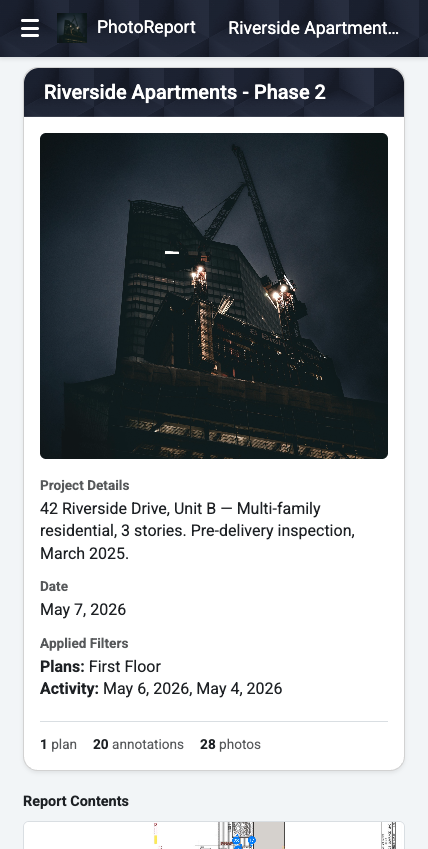
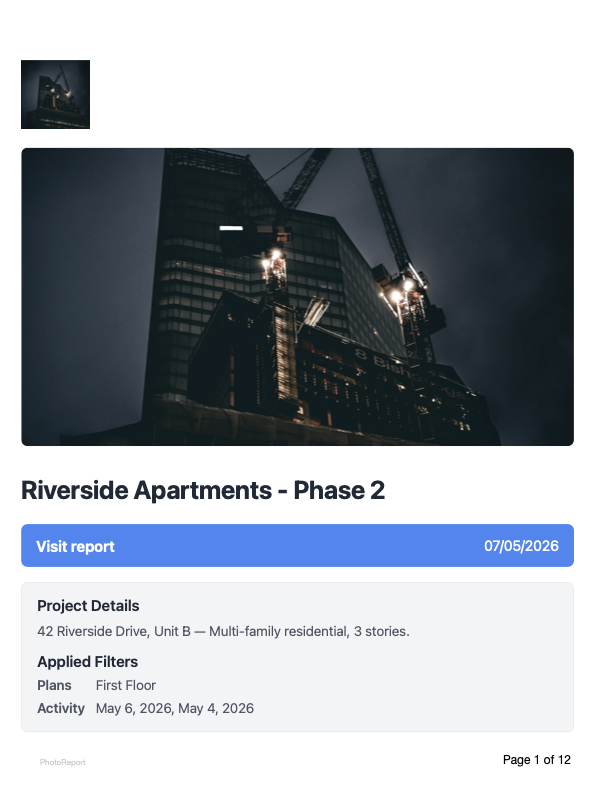
When you apply a filter while creating a report, that filter is now visible at the top of the exported report. Your client opens the PDF or the HTML link and sees, for example, “Filtered: Plan RDC, contributor Jean Dupont, days of 3 to 7 May 2026”. There is no more ambiguity about what they are looking at, and no more risk that someone reads a partial report as if it were the full one. This makes filtered reports legally and contractually safer to send.
General Observations Are Official
For several months, General Observations lived behind a feature flag for early-access users. They are a place to capture project-level notes that do not belong on any particular plan: a phone call with the architect, a delivery delay, a client remark during a kickoff meeting, an access constraint that affects every trade.
In 2026.5 they leave the lab. Every PhotoReport user now has a dedicated General Observations section in every project, with the same media types as plan annotations: photos, videos, audio comments, and text notes. They sync across collaborators in real time and are included in reports (and in the new filters above, so you can include or exclude them deliberately).
If you have ever tried to retro-fit “the project did not start on time because of X” into an annotation pinned to a plan, you know why this matters.
Reports Look Great Everywhere
We have spent considerable time in 2026.5 on what we call “the receiving experience”: what your client actually sees when they open the report you sent them.
Mobile-friendly HTML reports
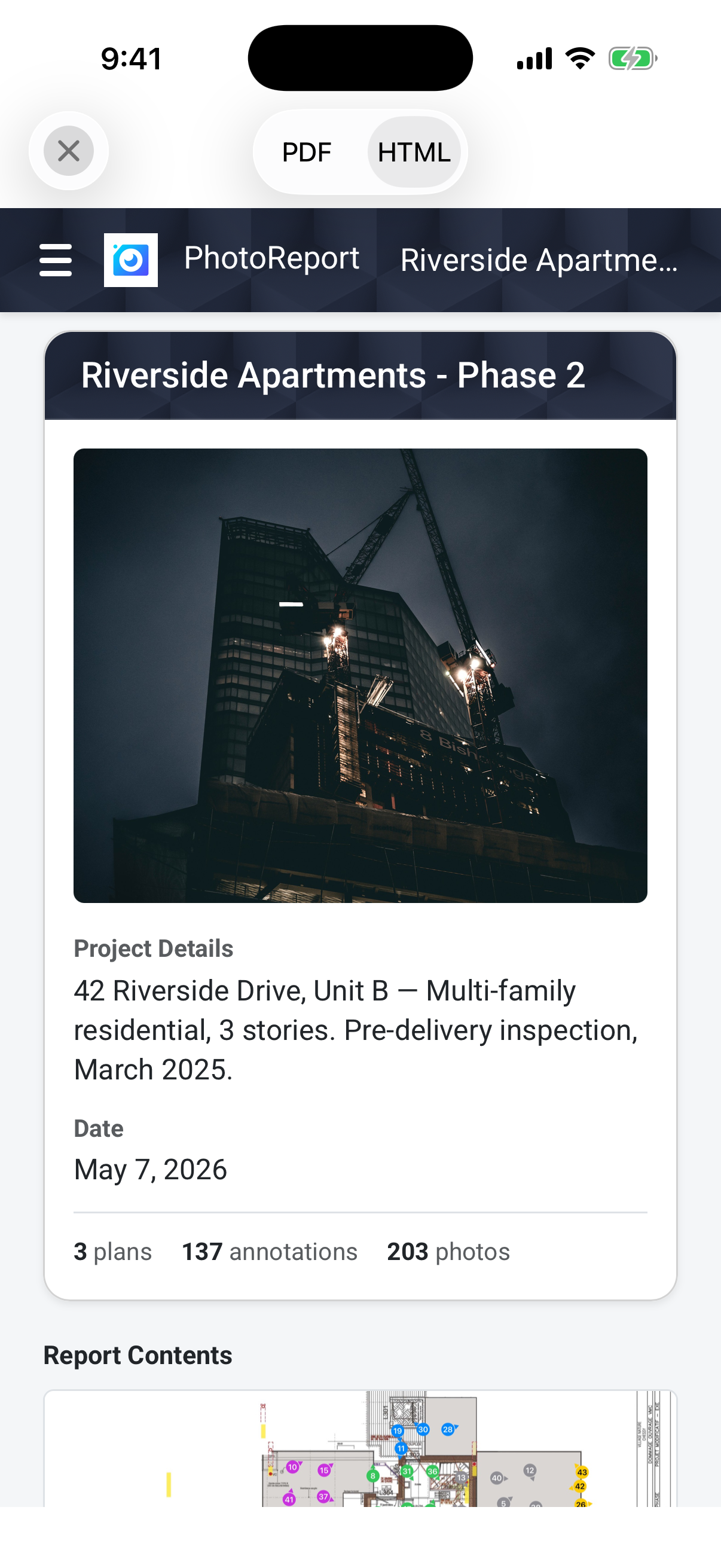
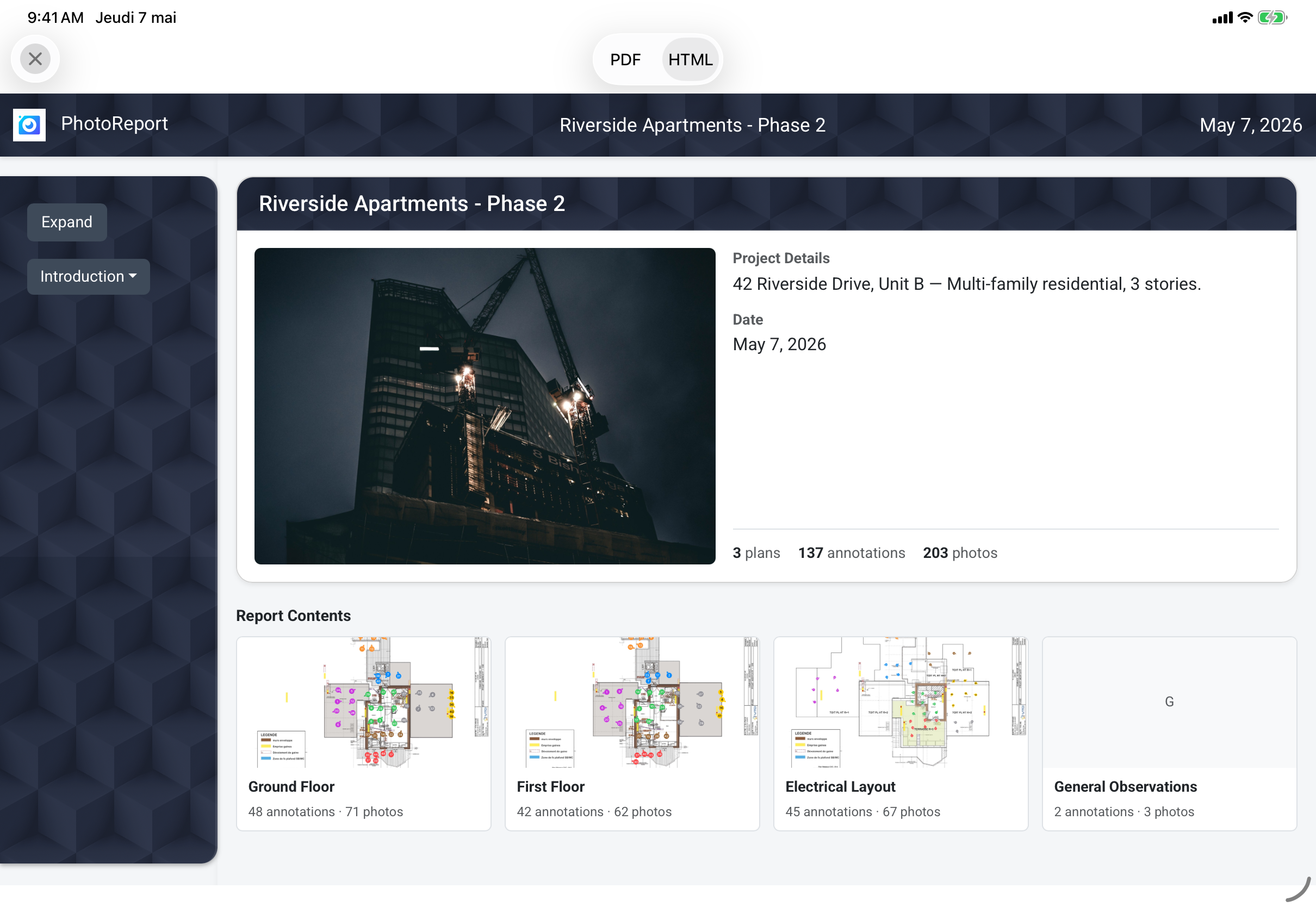
PhotoReport’s online HTML reports are interactive and full-resolution. In practice, most clients open the link on their phone, often standing in a building lobby or on the way to a meeting. The HTML report is now fully responsive on mobile: photos resize correctly, plans pinch-to-zoom smoothly, navigation collapses cleanly into a small-screen pattern, and the markers on plans remain tappable at thumb scale. No more “rotate your phone to landscape” workaround.
Localized in eight languages
The dynamic labels inside an HTML report (“Page”, “Plan”, “Annotation”, “Photos taken on”) used to be in the language of whoever generated the report. If you generated a report in French and shared it with a Dutch client, your client saw French chrome around their photos.
In 2026.5, HTML reports are localized in all eight of PhotoReport’s supported languages: English, French, German, Spanish, Italian, Brazilian Portuguese, Dutch, and Flemish. The viewer detects the recipient’s browser language and renders accordingly. The annotation content stays in whatever language you wrote it in; the chrome adapts.
Audio comments now play inside shared reports
Audio comments arrived in 2026.4 and worked beautifully inside the iOS app. They were silently dropped from PDF and HTML reports, which limited their value as a deliverable: you could record a verbal observation in the field, but only people inside the app could hear it.
In 2026.5, audio comments render as HTML5 audio players inside HTML reports and are listed alongside their photos in PDF reports with a clear “audio comment” badge and timestamp. Your client opens the report, taps play, and hears your voice describing the defect or the context. For consultants and inspectors who use voice as their primary capture medium, this closes the loop between fast field capture and a polished deliverable. If you are not using audio comments yet, our audio comments feature page explains why our heaviest field users record more audio than they type text.
Polished PDFs
The PDF report had a thorough pass in 2026.5.
Plans on a single page
Floor plans used to occasionally split across two PDF pages, with a long, awkward page break running through a building. This happened on plans whose aspect ratio did not match the PDF page neatly. In 2026.5, plan images are guaranteed to fit on a single page, scaled and rotated as needed to make the most of the available room while preserving readability. Annotations stay anchored exactly where you placed them.
Visual quality and brand colors
PDF aesthetics got a wider polish: cleaner cover-page typography, better spacing around photos, brand-color accents that match what you set in your project settings, and improved compression so the PDF file size is meaningfully smaller. If you have a Pro or Teams plan and have set your company logo and brand color, the resulting PDF feels like a document your firm signed off on, not a generic export.
New Photo Capture Settings
PhotoReport’s custom camera is built for site work: rapid bursts, annotations directly from the capture screen, faster than the system camera ever could be. In 2026.5, two new settings give you finer control.
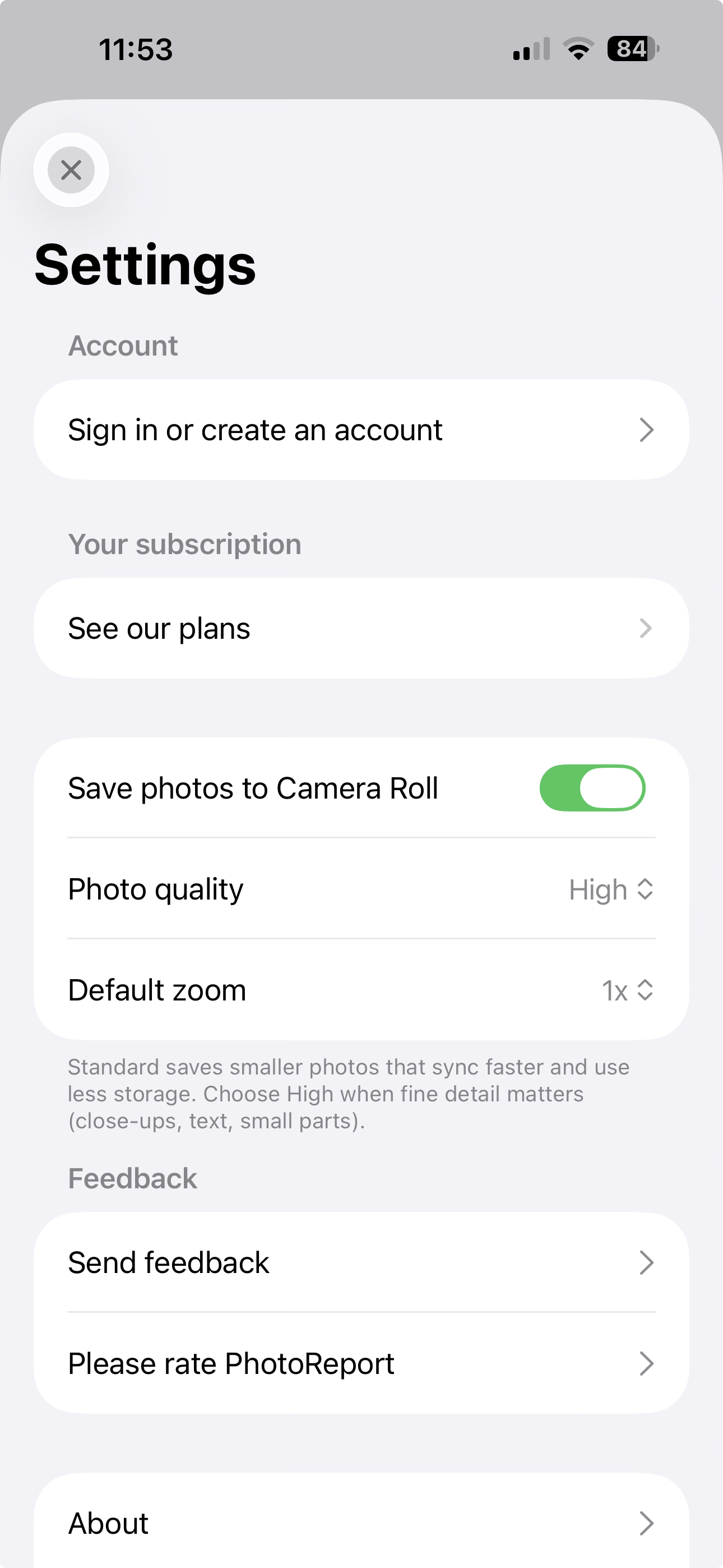
Standard or High photo quality
You can now choose Standard or High capture quality from Settings. High preserves more detail and is the default. Standard cuts file size by roughly half with a barely visible quality difference for inspection-style photos: the right choice for teams who do hundreds of photos a week and care about device storage, cloud storage, and report file size. Either way, HD photos remain a core PhotoReport differentiator: even Standard mode shoots at a resolution that exceeds what most competing apps allow.
Default back-camera lens
Modern iPhones have multiple back-camera lenses (ultra-wide, wide, telephoto). PhotoReport’s camera always opened on the wide lens, which is rarely what you want when documenting a confined room or shooting a detail across a large site. You can now set a default back-camera lens in Settings, including ultra-wide for tight rooms and telephoto for distant detail. The camera opens directly on your chosen lens, no extra tap.
A small but welcome iPad change: the shutter button now lives on the right side of the screen on iPad, where your thumb naturally is when holding the device in landscape with both hands.
Smoother on iPhone
PhotoReport started life iPad-first. The iPhone experience has caught up steadily over the past year, and 2026.5 closes most of the remaining gaps:
- Sidebar rows flattened to a single line where vertical space is precious.
- Toolbars stabilized so action buttons no longer disappear on iOS 18.
- Plan list now shows plan covers as thumbnails alongside titles.
- Projects toolbar collapsed into a single View Options menu.
- “Take Another” button moved to the bottom-left of the capture screen, reachable with the thumb of the hand holding the phone.
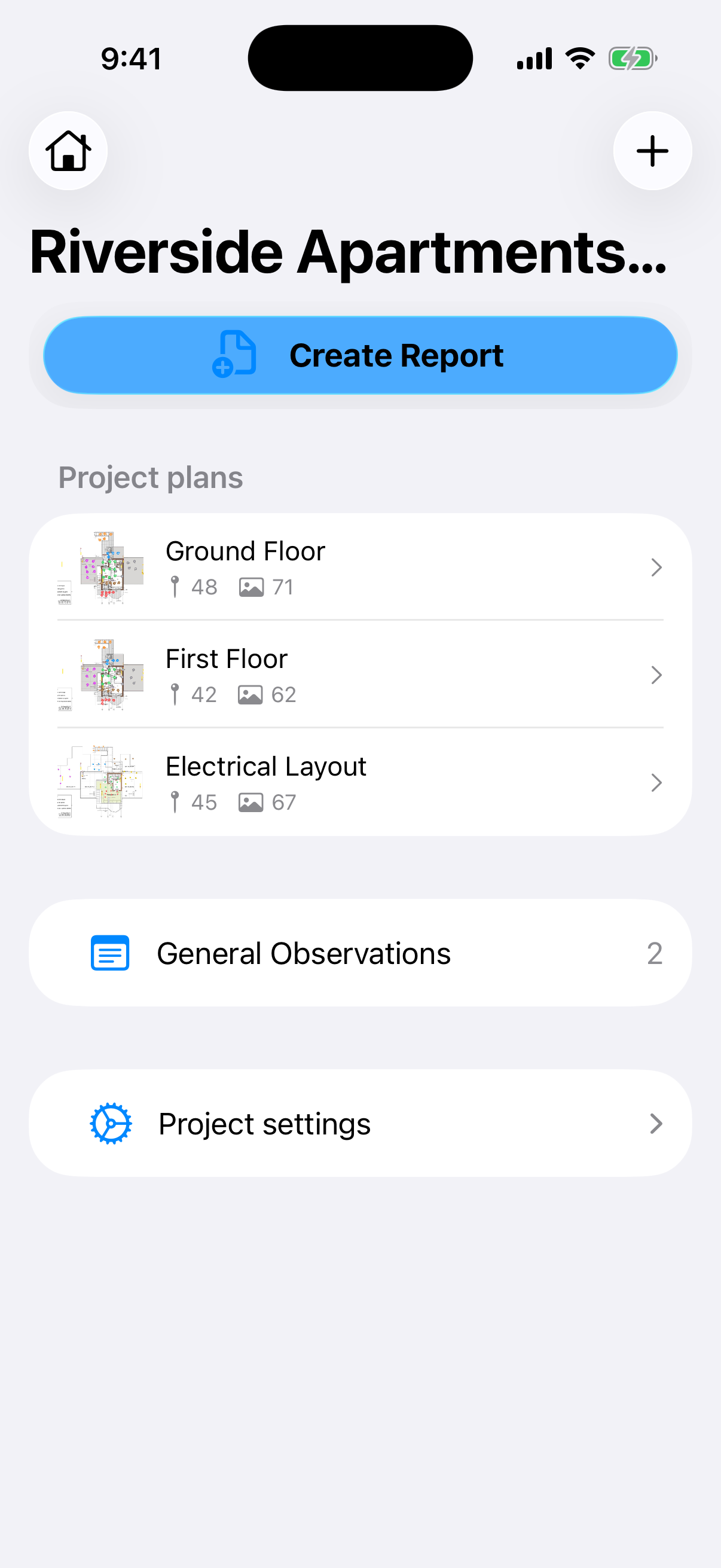
If your team uses PhotoReport primarily on iPhone (we know many do, especially solo inspectors and tradespeople), this release will feel noticeably tighter.
Performance, Stability, and Bug Fixes
A non-exhaustive list of what we fixed in 2026.5:
- Faster report preview thanks to ImageIO thumbnails and lazy HTML rendering.
- Fixed a Core Data crash when regenerating dirty plan covers in a background task.
- Fixed a photo file collision when a photo was deleted and immediately re-added inside the same annotation.
- Fixed report export for projects with zero plans.
- Skipped per-file upload during Share Online in favor of a single packaged upload, meaningfully faster on visits with many small photos.
- Stabilized ProjectView toolbars to prevent action items from disappearing on iOS 18.
What This Means for You
If you are a construction supervisor or site manager, the day-and-contributor filters are the headline. End-of-week recaps to your client take three taps now.
If you are an architect or design office, the polished PDF and single-page plan rendering are what your clients will notice on the next deliverable. Audio comments playing in shared reports is a quiet upgrade for design reviews.
If you are a technical inspector or building surveyor, General Observations leaving the lab gives you the official place for project-level remarks that do not belong on any plan.
If you are a property manager, real estate fund, or international consultant, the eight-language localization of HTML reports removes a recurring friction point with non-French-speaking clients.
If you are a tradesperson or independent inspector working primarily on iPhone, the polish across sidebars, toolbars, and the capture screen will be the most felt change in your day.
How to Update
PhotoReport 2026.5 is a free update for every active user, regardless of plan. Open the App Store on your iPhone or iPad, go to your account, scroll to pending updates, and install version 2026.5. If you have automatic updates enabled, you may already be on it.
Download or update PhotoReport on the App Store.
Frequently Asked Questions
Is 2026.5 a free update? Yes, for everyone, on every plan.
Do I need to do anything to get the new Create Report flow? No. Existing reports and shared links are unaffected.
Will my clients see HTML reports in their language automatically? Yes, if their browser language matches one of the eight supported languages. Otherwise the viewer falls back to English.
Does 2026.5 require iOS 26? PhotoReport 2026.5 supports iOS 18 and later, with full optimizations on iOS 26.
Have feedback on these new features, or a suggestion for what should ship next? Write to us from the app via Settings, then Feedback, or contact us directly from our contact page. We read every message, and the founder personally replies to most of them.